Bring any AI voice assistant into your contact center and stay in control

InfoServ CRM doesn't build voice assistants. It connects the one you choose to your phone lines, your agents and your customer data, so every call it handles is routed, monitored and measured like any other call.

Build voice assistants? Read the vendor integration guide.

Illustration of a contact center working with InfoServ CRM
Call passed to an agent Reason: customer wants to change a booking date The caller never hung up.

A voice assistant should work inside your contact center, not beside it

Most voice bots run on the vendor's own platform. They take calls you can't see, pass customers to agents with no context, and report results only in the vendor's dashboard. InfoServ CRM puts the assistant inside your contact center instead.

Comparison of a typical standalone voice bot and a voice assistant connected through InfoServ CRM
Aspect Typical standalone voice bot Voice assistant inside InfoServ CRM
Which calls it takesSet up in the vendor's platformYour Distributor rules, the same as for any agent
Phone numbersOften moved or forwarded to the vendor's telephonyYour existing phone provider or PBX
Live monitoringDepends on the vendorAssistant workload and live listening in InfoServ CRM, like any agent
Handover to an agentA new call, context often lostThe same call; the agent sees the reason and the customer record
If the assistant failsDepends on the vendorA fallback action you choose: a queue, your agents or a backup assistant
ResultsThe vendor's own metricsFlow Report and call reports in your InfoServ CRM
Changing vendorNew setup, history stays behindSwap the assistant; routing, reports and history stay

How it works

The customer always calls InfoServ CRM, never the assistant directly. InfoServ CRM stays on the line from the first ring to the last word.

  1. A customer calls your usual number

    The call reaches InfoServ CRM through your existing phone provider or PBX.

  2. The Distributor decides who answers

    The voice assistant is treated as another agent, so your routing rules and queues apply to it.

  3. The assistant talks to the customer

    InfoServ CRM connects the call over a dedicated SIP connection and stays on the line, so you can listen live and record it.

  4. The assistant hands back

    It ends the call or passes it to an agent, and sends InfoServ CRM the reason, tags, conversation path and any details it collected. A transcript and summary can follow after the call.

One call, step by step Recorded
  1. Call receivedThrough your usual phone provider. Customer identified by phone number.
  2. Distributor rule matchedCustomer service line, caller not marked as VIP, so the call goes to the voice assistant.
  3. Voice assistant connectedOver a dedicated SIP connection. Supervisors can listen live.
  4. Assistant passed the call to an agent
    Action
    getagent
    Reason
    Customer wants to change a booking date
    Tags
    booking, date change
    Path
    greetingidentificationbookinghandover
  5. Agent answeredThe reason, tags and customer record were on screen. The caller never hung up.

A schematic view of one call, not a product screen. In InfoServ CRM, these details are available in InfoServ CRM Admin.

The same control you have over your agents

You decide which calls it takes

The Distributor routes calls to the assistant with the same rules it uses for agents, based on the call and your CRM data. Start small and widen the scope when the results justify it.

  • One phone line or service
  • Callers who aren't in your CRM yet
  • Specific customer groups

Keep VIP customers with your agents. The rule is as simple as any other routing rule.
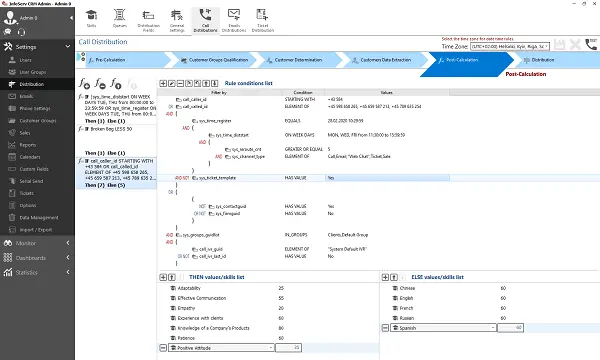
The InfoServ CRM Distributor with rules that route incoming calls to agent groups and to the voice assistant
The Distributor: the same tool that routes calls to your agents.

Customers never start over

When the assistant passes a call on, the customer stays on the line. Before saying hello, the agent sees why the assistant passed the call, its tags and the details it collected, with the customer's record on screen.

If the call reached the agent because the assistant failed, the agent sees what happened. Everything, including the conversation path, is stored with the call in your InfoServ CRM reports.

It works the other way too: an agent can send the caller back to the assistant, for example to make another booking.

Illustration of the 360-degree customer profile in InfoServ CRM, with contact details and communication history
The full customer profile is in front of the agent as the call is passed on.

Listen live, review later

See how many calls the assistant is handling and how many are waiting, and listen to any assistant call in real time, the same way you monitor your agents.

If recording is on, calls are recorded by InfoServ CRM and kept with the customer's history, not in a separate system.
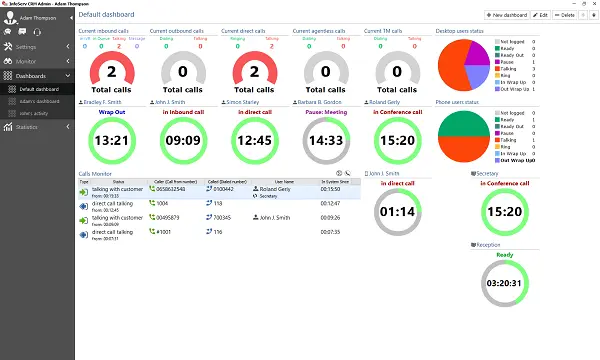
Real-time monitoring in InfoServ CRM showing active calls, including calls handled by the voice assistant
Real-time monitoring, with assistant calls next to agent calls.

Put what the assistant learned to work

Everything the assistant sends back lands in InfoServ CRM, where your existing tools can act on it.

Route by topic

Distributor rules can use the tags and details the assistant sends. A call the assistant tags as billing can go straight to your billing queue.

Open the right customer record

If the assistant asks for a customer code, a Distributor setting matches it to a field in your CRM, so the agent gets the right record. InfoServ CRM's own identification works too.

Create tasks and tickets automatically

With Automatic Actions, you set up a trigger, such as an assistant call with a given tag or detail, and an action, such as a task for a specific agent or a ticket with the call. No development needed.

Measure every assistant the same way

The Flow Report is built by InfoServ CRM, not by the vendor, from the conversation path the assistant reports for each call. You see where callers get stuck and which topics end with an agent, and every assistant is measured the same way, whichever vendor you use.
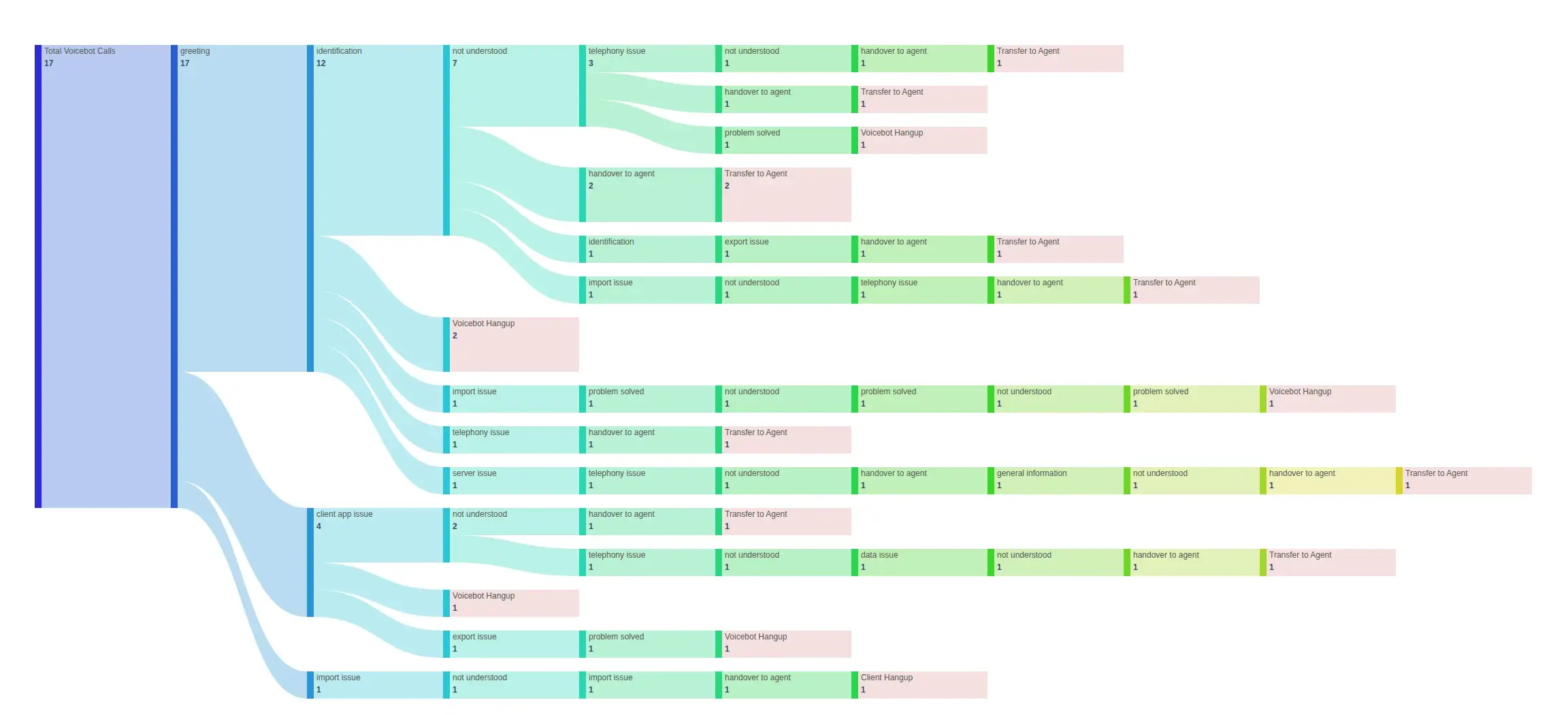
Flow Report: 17 calls enter on the left, branch through the steps the assistant reported, such as greeting, identification, not understood and handover to agent, and end on the right: 10 transferred to an agent, 6 ended by the voice assistant and 1 ended by the caller.
A Flow Report from 17 test calls. Step names are the ones the assistant reported. Open full size
On the left

Every call for which the assistant reported its conversation path.

In the middle

Each step the assistant reported, in order. The band width is the number of calls.

On the right

How each call ended: passed to an agent, ended by the assistant or ended by the caller.

Calls where the assistant didn't answer or sent no valid result appear in the call reports instead.

If the assistant fails, the caller is still taken care of

InfoServ CRM watches every call it sends to the assistant. When something goes wrong, it runs the action you've chosen for that situation.

The assistant doesn't answer
The connection fails, or nobody answers within the ringing time you set.
No result from the assistant
The assistant ends the call without telling InfoServ CRM what to do next.
Invalid result
The result is missing required information.
Call too long
The conversation goes past the maximum time you set.
Call too short
The conversation ends before the minimum time you set.

For each situation, you choose what happens

  1. End the call.
  2. Send the call to the same queue, without voice assistants.
  3. Route the call through the Distributor again, for example to a queue with a backup assistant from another vendor, or to agents only.

When a call reaches an agent this way, the agent sees which situation occurred. Call reports show whether each call ended with the assistant's result or a fallback action.

You decide what data the assistant receives

Each item is switched on separately, including the caller's number. The only mandatory item is a technical call token the assistant uses to return its results.

Everything the assistant sends back is stored in your InfoServ CRM and stays there even if you change vendors.

What the caller says during the conversation reaches the assistant regardless of these settings. How the vendor handles the conversation itself is governed by your agreement with that vendor.

Data sent to the assistant with each call

A simplified view of the settings, not the actual screen. Each item is set by your InfoServ CRM administrator.

The assistant receives: the call token only.

Illustration of InfoServ CRM connected to a phone provider or PBX, IP phones and the built-in softphone

Built to fit the contact center you already run

Keep your phone numbers and provider
No porting numbers to a vendor's telephony platform. Calls reach the assistant over a direct SIP connection from InfoServ CRM.
Choose your vendor, and change it
Use a ready-made assistant from a tested vendor or have one built for your processes. Switching vendors doesn't touch your CRM, telephony or agent workflow, and your call history stays in InfoServ CRM.
Several assistants, one contact center
Different assistants can handle different phone lines, services or languages, each set up as an agent in InfoServ CRM.
Transcripts and summaries after the call
The assistant can send a transcript and summary once the call has ended, so the caller is never kept waiting while they're prepared. Both are stored with the call.

Bring your own voice assistant

No lock-in to a single vendor. If your assistant meets our requirements, it can work with InfoServ CRM.

Your own assistant

Any assistant that can receive calls over SIP 2.0 and call an HTTP API can be integrated, including one your team builds.

Build voice assistants?

Make your assistant available to every contact center that runs InfoServ CRM. The vendor guide covers the SIP setup, API parameters and testing.

Questions and answers

What contact centers ask before connecting a voice assistant to InfoServ CRM.

No. InfoServ CRM provides the integration that connects a third-party voice assistant to your contact center. You choose the assistant and can change it at any time.

Any assistant that can receive calls over SIP 2.0 and call an HTTP API. Vihra AI and Digital Agent have been tested successfully.

No. Calls arrive in InfoServ CRM as they do today, through your phone provider or PBX, and the assistant receives them over a dedicated SIP connection.

It passes the call to an agent. The customer stays on the line, and the agent sees why the assistant passed the call and has the customer's record on screen.

InfoServ CRM runs the fallback action you've set for that situation: it ends the call, sends it to the same queue without voice assistants, or routes it through the Distributor again, for example to a backup assistant or to agents only.

Only what you switch on. The mandatory minimum is a technical call token the assistant uses to return its results. The caller's number, the IVR language, whether the caller was identified, the contact ID and the company ID are each sent only if you enable them. How the vendor handles the conversation itself is governed by your agreement with that vendor.

The Flow Report shows the conversation paths the assistant reported: how the calls ended, where callers get stuck and which topics end with an agent. It is built by InfoServ CRM, so every assistant is measured the same way. Call reports also show which calls ended with a fallback action.

Yes. An agent can send the caller back to the voice assistant, for example to make another booking. Each time the caller reaches the assistant counts as a separate assistant call, with its own time limits, fallback actions and place in the Flow Report.

Yes. Different assistants can handle different phone lines, services or languages, each set up as an agent in InfoServ CRM.

See it with your own calls

Tell us how your contact center works today. We'll show you how a voice assistant fits in, which calls to start with and how you'll measure the results.

Already working with a voice assistant vendor? Let us know, and we'll include them in the conversation.

Do you have a question?

+359 2 426 61 62

Monday to Friday, 9 AM - 6 PM UTC+3

Request a demo

Do you already have a voice assistant vendor?

By requesting a demo, you agree to our Privacy Policy

Please verify that you are not a robot.